




Leaderboard


Popular Content
Showing content with the highest reputation since 10/29/25 in Files
-
4 points
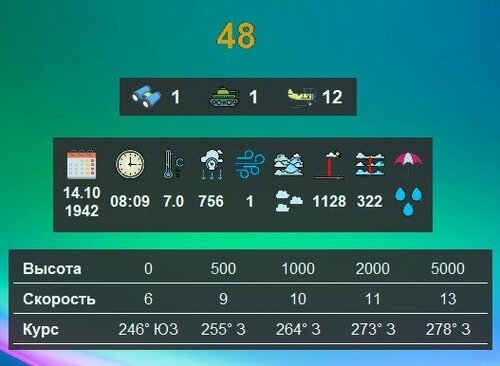 Функциональность панелейОтображение информации: Панели отображают актуальную информацию о текущей миссии на сервере Front Line практически в реальном времени. Гибкость настройки: Каждую панель можно свободно перемещать и располагать в любой части экрана. Порядок и расположение панелей настраиваются индивидуально под ваши предпочтения. Примеры расположения показаны на скриншотах (области выделены красными прямоугольниками). Оптимизация интерфейса: Панели можно расположить так, чтобы они не мешали игровому процессу. Доступна настройка отображения только необходимых элементов, например, только таймер. Як-3 Bf 109 Блоки информации: Время текущей миссии: Оставшееся время до конца миссии Информация о текущей миссии: Дата Время Температура Атмосферное давление Турбулентность Облачность Высота до облаков Высота слоя облаков Кол-во осадков Состав участников команды противника или союзника (смотря какую сторону выберете): Количество игроков на самолётах Количество игроков на танках Количество игроков в лобби Информация о ветре на текущей карте: Высота Скорость Направление (откуда дует ветер) Панель ТТХ техники Боковая скрывающаяся панель с состояниями целей на карте (правая часть экрана) Боковая скрывающаяся панель с целями для снабжения (левая часть экрана) ВАЖНО: Запуск в оконном режиме: Запускайте игру не в полноэкранном режиме, чтобы панели отображались поверх нее. Настройка файла конфигурации: Сделает выпадающие списки на панелях кликабельными и даст возможно перемещения при включенной карте. Откройте файл startup.cfg по пути: D:\Games\IL-2 Sturmovik Great Battles\data\startup.cfg В секции [KEY = input] установите параметр exclusive = 0 Для автоматического определения самолёта пользователя (работает только офлайн) для панели с ТТХ необходимо включить логгирование в игре. В секции [KEY = system] установите параметр mission_text_log = 1 и gamelog = 1 В стартовом окне программы необходимо указать путь до папки с игрой Режим перемещения панелей: Нажмите кнопку O/Щ на клавиатуре (кнопка открытия карты по умолчанию в игре) для активации режима перемещения. Если произошла рассинхронизация с картой можно в полёте нажать кнопку backspace Управление панелями: Для перемещения панели зажмите левую кнопку мыши и перетащите её в нужное место. Для закрытия панелей в режиме перемещения нажмите правой кнопкой мыши на любой панели. Более подробное описание: - оставшееся время миссии в минутах. Обновляется один раз в 30 - 90 секунд, при достижении 15 минут меняет цвет на красный , при достижении 5 минут период обновления сокращается до 15 - 30 секунд. - кол-во игроков выбранной коалиции, обновляется один раз в 30 - 90 секунд. кол-во лётчиков кол-во танкистов кол-во в лобби - сведения о текущей миссии, обновляется один раз за всё время миссии. дата формат ДД.ММ.ГГГГ время формат ЧЧ:ММ 24 часа температура формат Х.Х в градусах Цельсия атмосферное давление в миллиметрах ртутного столба (мм рт. ст.) турбулентность коэффициент от 0 до 1, где 1 - это максимальная турбулентность облачность без облачно малооблачно средняя облачность высокая облачность высота до облаков в метрах высота слоя облаков в метрах осадки без осадков незначительные умеренные высокие - данные о ветре, высота в метрах, скорость в м/с, курс в градусах (откуда дует ветер) - данные по выбранной технике, любые данные которые захотите, вносятся через файл Json. Для примера добавил пару самолётов за обе стороны Данные берутся из файла json. Добавлена возможность автоматического определения самолёта пользователя, работает только офлайн. Какие параметры есть у строк: "30 минут": # Название параметра {"value": "1,32 ata\n2400 об", # Значение параметра, символ "\n" - перенос на новую строку "color": "orange", # Цвет параметра можно использовать red, green, blue, white, black, yellow, orange, gray, cyan, magenta, brown, purple, pink и другие "size": 14, # Размер шрифта параметра "type": "bold" } # Жирный шрифтминимальная запись будет выглядеть вот так (белый текст, не жирный, размер шрифта по умолчанию): "30 минут": {"value": "1,32 ata\n2400 об"} - боковая скрываемая панель с состояниями целей на карте. Обновляется так-же в интервале 30-90 секунд, есть кнопка обновить, которая так-же может быть нажата один раз в 30-90 секунд. Панель появляется в режиме перемещения при приближении указателя мыши к правой границе экрана - боковая скрываемая панель для отображения целей необходимых для снабжения. Обновляется так-же в интервале 30-90 секунд, есть кнопка обновить, которая так-же может быть нажата один раз в 30-90 секунд. Панель появляется в режиме перемещения при приближении указателя мыши к правой. Объекты появляются когда любой из ресурсов аэродрома падает меньше 70%, аналогично с городами.4 points
 -
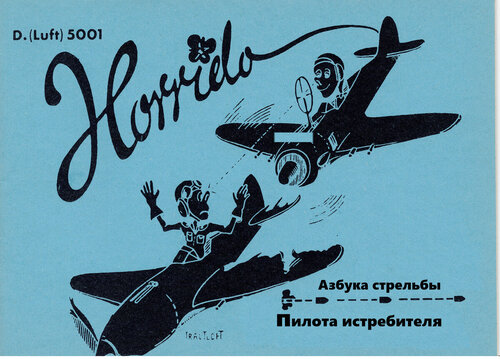 Дата издания: Июнь 1944 года Язык: Русский (перевод с немецкого) Формат: Иллюстрированное методическое пособие Описание: Перед вами легендарное руководство для немецких летчиков-истребителей Люфтваффе, изданное в конце Второй мировой войны по инициативе генерала инспектора дневной истребительной авиации Адольфа Галланда. Книга написана простым и доступным языком, с использованием юмора и запоминающихся карикатур (художник Томас Абекинг). Ее цель — в максимально наглядной форме обучить молодых пилотов основам воздушного боя и эффективному ведению огня. Основные разделы: Оценка дистанции: как правильно использовать прицел Revi для определения расстояния до цели. Упреждение: расчет точки прицеливания в зависимости от ракурса и скорости цели. Ошибки пилотирования: влияние скольжения и спутного следа на точность стрельбы. Управление вооружением: краткие инструкции по кокпитам и приборным панелям Bf 109 G-5/G-6 и FW 190 A-6. Боеприпасы: типы снарядов (осколочные, фугасные, бронебойные) и рекомендации по набивке пулеметных лент для борьбы с разными типами целей (включая четырехмоторные бомбардировщики). Работа с прицелом и трассерами: почему не стоит верить только трассирующим снарядам и как важна правильная юстировка оружия. Для кого: Пособие будет крайне интересно любителям авиасимуляторов (Ил-2 Штурмовик, DCS, War Thunder), историкам авиации и всем, кто интересуется тактикой воздушных боев Второй мировой войны. Это отличный пример того, как сложные технические и баллистические данные можно донести до личного состава через наглядную визуализацию.1 point
 -
1 point
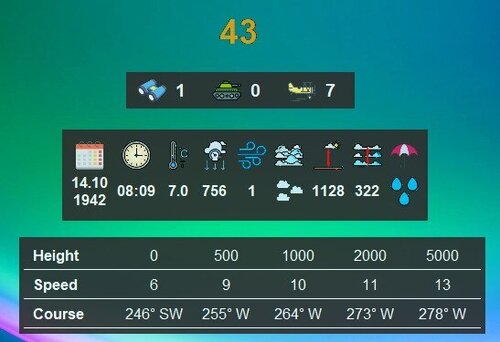 Panel FunctionalityInformation Display: Panels show real-time mission data from the Front Line server with minimal delay. Customization Options: Freely move and position panels anywhere on your screen. Customize panel order and arrangement to suit your preferences. See example layouts in the screenshots (highlighted with red rectangles). Interface Optimization: Position panels to avoid interfering with gameplay. Show only the elements you need, such as just the timer. Spitfire Bf 109 Blocks of information in the form of cards Current mission time: Remaining time until the end of the mission Information about the current mission: Date Time Temperature Atmospheric pressure Turbulence Cloud cover Height above the clouds Height of the cloud layer Amount of precipitation Composition of the enemy or ally team (depending on which side you choose): Number of players on the planes Number of players on tanks Number of players in the lobby Wind information on the current map: Height Speed Direction (where the wind is blowing from) Vehicles spec panel Collapsible side panel with map target statuses (right side) Collapsible side panel with map supply statuses (left side) IMPORTANT: Windowed Mode: Run the game in windowed mode to ensure panels display on top of the game window. Configuration File Setup: It will make the drop-down lists on the panels clickable and allow you to move while the map is enabled. Open the startup.cfg file at the following path: D:\Games\IL-2 Sturmovik Great Battles\data\startup.cfg In the [KEY = input] section, set the exclusive = 0 parameter To automatically detect the user's aircraft (only works offline), you need to enable logging in the game for the panel with aircraft specifications In the [KEY = system] section, set the parameter mission_text_log = 1 and gamelog = 1 In the program's start window, you need to specify the path to the game folder Panel Movement Mode: Press the O key (default map key in the game) to activate movement mode. If there is a mismatch with the card, you can press the backspace button in flight Panel Controls: To move a panel: Click and hold the left mouse button, then drag to the desired position. To exit movement mode: Right-click on any panel. A more detailed description: remaining mission time in minutes. Updated once every 30 - 90 seconds, changes color to red when 15 minutes are reached, and updates every 15 - 30 seconds when 5 minutes are reached. the number of players in the selected coalition, updated once every 30 to 90 seconds. number of pilots number of tankers number in the lobby information about the current mission, updated once during the entire mission date format DD.MM.YYYY time HH:MM format 24 hours temperature format X.X in degrees Celsius atmospheric pressure in millimeters of mercury (mm Hg) turbulence a coefficient between 0 and 1, where 1 is the maximum turbulence cloud cover without cloud partly cloudy average cloud cover heavily cloudy height to the clouds in meters cloud layer height in meters precipitation no precipitation light precipitation moderate precipitation heavy precipitation wind data, altitude in meters, speed in m/s, and direction in degrees (from where the wind is blowing) data for the selected technique, any data you want, is added through the Json. file. For example, I added a couple of planes on both sides The data is taken from the json file. The ability to automatically detect the user's aircraft has been added, but it only works offline. Here are the parameters for the strings: "30 minutes": { # Name of the parameter "value": "1,3 ata\n2500 rpm", # Parameter value, "\n" symbol - line break "color": "orange", # The parameter color can be set to red, green, blue, white, black, yellow, orange, gray, cyan, magenta, brown, purple, pink, and others "size": 14, # Font size of the parameter "type": "bold" }, # Bold fontThe minimal record will look like this (white text, not bold, default font size): "30 minutes": {"value": "1,3 ata\n2500 rpm"} - collapsible side panel showing map target statuses. Updates every 30-90 seconds, includes a refresh button that can be pressed once every 30-90 seconds. The panel appears in movement mode when the mouse pointer approaches the right edge of the screen. - a side-by-side panel that can be hidden to display the targets required for supply. It is also updated every 30-90 seconds, and there is a refresh button that can be clicked once every 30-90 seconds. The panel appears when the mouse pointer is moved to the right. Objects appear when any of the airfield resources drops below 70%, and the same applies to cities.1 point