



Jump to content
View in the app

A better way to browse. Learn more.

FRONT LINE

A full-screen app on your home screen with push notifications, badges and more.

To install this app on iOS and iPadOS
  1. Tap the Share icon in Safari
  2. Scroll the menu and tap Add to Home Screen.
  3. Tap Add in the top-right corner.
To install this app on Android
  1. Tap the 3-dot menu (⋮) in the top-right corner of the browser.
  2. Tap Add to Home screen or Install app.
  3. Confirm by tapping Install.

SG2 "Immelmann"

Image design rules
  1. ach image should have a meaningful name.

  2. The image name should not contain the file name, etc.

  3. Each image must be accompanied by a meaningful description.

An image that has no meaningful name or description will be deleted by the administrator without warning.

How do I give a name and description?

When you upload images, they appear in the dialog. Just click on the image, and the fields to fill in will appear on the right. If you upload a bunch at once, you need to select each image and give it a meaningful name and description.
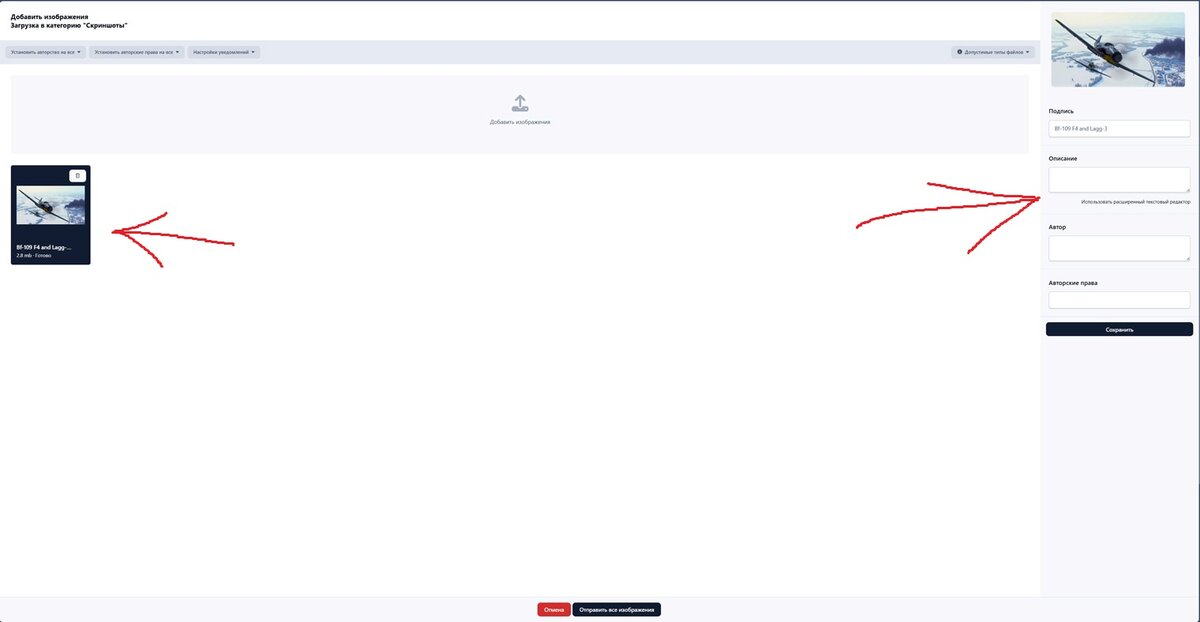
upladimages.jpg.03b66812633fc00a72add1e741cc383f.jpg

Configure browser push notifications

Chrome (Android)
  1. Tap the lock icon next to the address bar.
  2. Tap Permissions → Notifications.
  3. Adjust your preference.
Chrome (Desktop)
  1. Click the padlock icon in the address bar.
  2. Select Site settings.
  3. Find Notifications and adjust your preference.